Showing posts with label video. Show all posts

New Ipad Video Lessons

Thursday, June 19, 2014

But like any tool, it’s useless if you don’t know how to operate it properly. In fact, if you don’t know what you’re doing, you can end up doing more harm than good.
No, learning to use an iPad isn’t rocket science, but it’s not always the easiest thing to grasp, either. It can even be a bit embarrang. You see your friends and colleagues tapping away as if they’ve been iPad sleuths all their lives. Meanwhile, you find yourself taking two steps forward, then one step back – taking three times as long to do something you know should be simple.


                                                  Download

With 19 carefully selected, professionally produced videos, this course puts the power of the iPad literally at your fingertips. And you don’t have to worry about the videos confusing you even further.

We’ve taken great care to make sure that each video is clear and concise, introducing you to one function at a time and showing you exactly how to use it to the fullest. When you’re done, you’ll be well versed in all of your iPad’s major features, and with a little practice, you’ll find yourself zipping along like a pro.
Fully customize your iPad so it works for you and not the other way around;
Zoom, snap and organize photos with ease;
Keep up to date with all your events and appointments at a glance;
Store contact info for all your friends, family and colleagues and contact them in myriad different ways;
Ensure you can quickly connect to any available network in your area without floundering about and losing valuable time;
Set up your very own Wi-Fi hot spot to allow anyone in your area to access the internet;
Constantly keep in contact with fellow iPad, iPod and iPhone users through Apple’s iMessage app, as well as create or configure your email account;
Crank the tunes either through your iPad’s speaker, headphones or even your home sound system;
Find out where you’re at and how to get where you’re going with a minimum of grief, (including how to drop pins on the map for instant access.);
Learn the current weather conditions and forecast, no matter where you are, (plus, you can see exactly what forecasters predict by the hour, making activity planning that much simpler.);
Harness the unbelievable power of iPad apps – how to find them, buy them, and get them up and running;
Keep in the good graces of the flight crew by putting your iPad in airplane mode;
Make your iPad come alive with your very own sound scheme;
Keep your most treasured photos near and dear by using them as wallpaper on your iPad;
Set your iPad to display text in a larger font, or even talk back to you;
Instantly search your iPad for any scrap of info you happen to need, (messages, videos, apps, contacts, you name it.);
Connect external devices, like a headset or a full-size keyboard, to your iPad in a flash;
… And much more besides.
Just look at that list. It’s a little daunting, isn’t it? So why waste your time trying to figure it all out on your own?
If you take advantage of the video guidance offered in these easy to follow video lessons, you can be assured that you’re not going to “miss something.” That’s right; no slapping yourself in the forehead when you discover 10 months down the line that it’s laughably simple to perform that function that used to take an eternity, or worse, that your iPad can in fact do something you always thought it couldn’t.
With this, I take a systematic approach to teaching you all you need to know to get a firm grasp on your iPad and its capabilities. Plus, you can use the techniques you learn to explore the endless variety of apps out there that can turn your iPad into so much more than a plain vanilla PDA.

Setup and Initial Customization
Camera and Photo Organization
Calendar Viewing, Creation and Maintenance
Contacts
Wi-Fi Connectivity, Hot Spot Setup and Network
Speed Breakdown
Messaging
Music
Maps
Clock
Weather
App Searching, Purchasing and Management
Wallpaper
Screen Brightness
Airplane Mode
Sound Customization
Accessibility
Spotlight
Bluetooth Connectivity
Resetting to Factory Defaults
Now, how long do you think it would take you to muddle through this all on your own?
A few hours? A day? A few weeks? Longer?
Click the order button below, download your IPad video package, and you could be mastering the most important iPad features within minutes or hours. In fact, you’ll probably be so excited about just how easy it is that you’ll go through the entire package until you’ve done it all.

Click Here to get it.
Read more ...

How to Record Screencast Videos on Android

Friday, June 13, 2014
I uploaded my first Android screencast on YouTube today. The video walks you through the steps necessary to install an Android app from the Google Play store on your mobile phone.

The Android screen was recorded at 720p (1280×720) resolution, there are no visible frame-drops in the video and the screencast output is in MPEG-4 (.mp4) format that can be directly uploaded to YouTube or can be edited in any video editing app, both on your phone and the desktop.

Screencasting on Android – Step by Step

If you would like to record screencast videos of your own Android phone, the good news is that you don’t need to install any app nor do you have to root your device. The not-so-good news is that you can only capture screencasts on phones (or tablets) that are running Android 4.4+ and it will not record the audio.
According to Google, about 14% of Android devices are currently running KitKat. If you happen to be one among them, here’s how you can screencast your phone.

Step 1: Prepare your Android Device for Screencasting

Open your Android phone settings and go to About Phone, the last option in the list. Next tap Build Number seven times in quick succession and you’ll see a message saying that Developer Options have been enabled in your device.
USB Debugging - Android

Now use the “back” button to return to the Settings page, tap Developer Optionsand toggle the on-off switch. Here turn on USB Debugging and also enable Show Input Touches – the on-screen interactions like taps and swipes will be recorded as circles in the screencast.

Step 2: Prepare your computer (Windows or Mac)

We need to install the Android SDK on our desktop. This is simple. All you have to do is download the SDK in a zip file from the android.com website and unzip the file anywhere on your computer.
The Android SDK is available for both Mac and Windows.

Step 3: Connect your Android phone to the desktop

First connect your Android phone to your computer though the regular micro USB cable. The phone will display a prompt asking you to “Allow USB debugging.” Tap OK to continue.
ADB - Record Screencast
Now open the command prompt in Windows, or the Terminal shell on your Mac, and switch (use the “cd” command) to the sdk/platform-tools directory inside the Android SDK folder.
Here run the command adb devices and if it shows a device under the “List of devices attached”, you are all set to record the first movie of your Android screen.

Step 4: Record the Screencast Video

Run the follow command to enter recording mode. Advanced users may refer to the help manual to learn about the various options supported by screenrecord.
adb shell screenrecord --verbose ./sdcard/screencast-video.mp4
Now switch to your phone and whatever you do here will get recorded in the video. When you are done, go to command window and press Ctrl + C to stop the video recording. The screencast is now saved in your Android phone.
You can use a File manager app, I prefer File Wrangler, to search for the screencast-video.mp4 file on the phone and transfer it to your desktop for editing.

Source :- labnol.org
Read more ...

[How To] Use A Video As Your Android Phone’s Live Wallpaper

Monday, May 26, 2014
The days are long gone when portable devices like phones had a tough time playing videos. Most phones today come with the capability 1080p video playback, something which has been made possible only because of the immense growth in the hardware of phones. Most phones come with 1GB of RAM today, and 512MB is seen as bare minimum by today’s tech-savvy youth.Ever since Android introduced the concept of ‘live’ wallpapers, users always wanted to have their favourite video as the phone’s live wallpaper. A live wallpaper is something which acts as your phone’s background screen (on the launcher) which is not static like your usual wallpapers, but dynamic. It can be anything from a little car moving ahead in traffic, to your favourite season – rainfall. Some live wallpapers even respond to the user’s touch; making them even more amazing to view.To set a video as your live wallpaper:

Make sure you’ve signed in to your Google account on your phone, and that your phone is connected to the internet
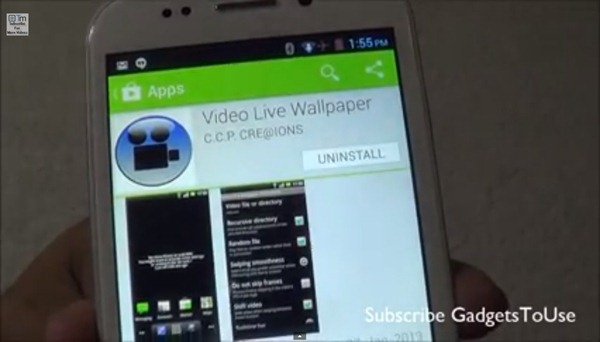
Search for ‘Video Live Wallpaper’ on the Play Store

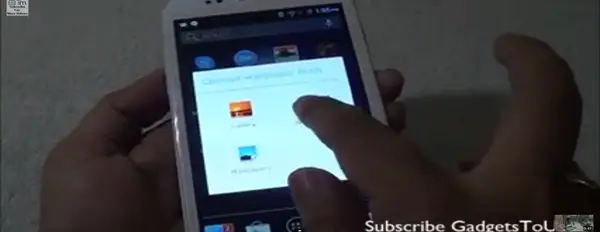
The app we’re looking for is of the same name, by a developer called ‘C.C.P Cre@tions’. Download this. Go to your phone’s home screen after the app gets installed Touch and hold/menu->change wallpaper, and select ‘Live Wallpapers’ 


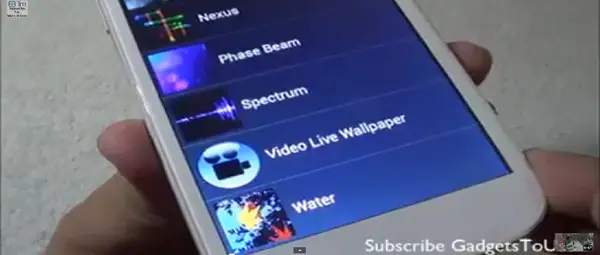
You will now see a new entry labelled ‘Video Live Wallpaper’. Touch this. Now, on the bottom left you will see the Settings button. Touch here and set your favourite video as your live wallpaper 


Source :- gadgetstouse


Read more ...

See Watch Dogs’ hacking in real life with this new video

Sunday, May 18, 2014

As a promotion for its upcoming open-world hacking game, Watch Dogs, Ubisoft handed protagonist Aiden Pearce’s world-hacking cell phone over to unsuspecting civilians (or faux-unsuspecting actors–you never can tell these days) and filmed the ensuing, staged chaos. When the mark comes into a small, cell phone repair shop, the salesman gives their phone a bonus app that lets them “hack” their surroundings with the press of a button. What starts with just turning off and on a light quickly escalates to creating total havoc on the streets before the panicked dupe is let in on the joke. 

Watch Dogs will be out on May 27 for Xbox One and PlayStation 4.

Will Fulton is a New York-based writer and theater-maker. In 2011 he co-founded mythic theater company AntiMatter Collective (antimattercollective.org) for whom he is a writer, director, producer, and sound designer, and he has worked in various capacities with companies such as Target Margin, 500 Clown, and Court Theatre. Previously he has written criticism for nytheatre.com. He studied classics, theater, and media at the University of Chicago.


View the original article here

Read more ...

Move over PC: TV predicted to become the leading online video platform

Saturday, May 17, 2014

Whether you use a gaming console, a Blu-ray or media player, or a smart TV, it’s no surprise that Internet-connected TVs are on the rise. But NPD Group’s latest quarterly Connected Home Report shows that the numbers took a big jump from the same time last year, showing connected TVs rising around 17 percent, or 6 million homes, for a total of 42 million in the first quarter of 2014. That’s a whole lotta TVs on the Web, putting the big screen in prime position to overtake the PC as the most ubiquitous Internet-equipped component. 


NPD cites the ever-increasing popularity of streaming media players is a major driving factor in the rise of connected TVs. Whether using Rokus, Apple TVs, Google’s Chromecast, Amazon’s Fire TV, or a slew of other devices, consumers have more choices than ever to get their favorite online content to the big screen. 


Computer-based video consumption has led the online video pack for the last decade. But recent research from Parks Associates helps support the assertion that the PC is on the way out when it comes to online video consumption. Detailed in a blog by the company, Director of Research, Brett Sappington, said that the amount of all video consumed on computers has dropped from over eight hours per week in 2013, to 6.2 hours per week currently. In fact, the PC was the only platform to show any significant decline in viewership within the past year.


“Ultimately, consumers can more easily access online video options on a television than ever before. In addition to smart TVs, Blu-ray players, and game consoles, consumers are also buying streaming media players and devices such as Google’s Chromecast,” said Sappington.


How do you watch your online content? Are you still glued to the computer, or have you moved to the TV? Let us know in the comments.


.


View the original article here

Read more ...